
Getting started
Session Bay is a desktop workbench for AI coding agents. It reads the history that your agents already keep on disk, organizes it by project, and gives you real terminals to keep working, all on your own machine.
In five minutes
Section titled “In five minutes”- Install Session Bay and open it.
- The first launch opens Settings. Session Bay already knows where each agent keeps its history; check that the agents you use are enabled, then choose Save and start scanning.
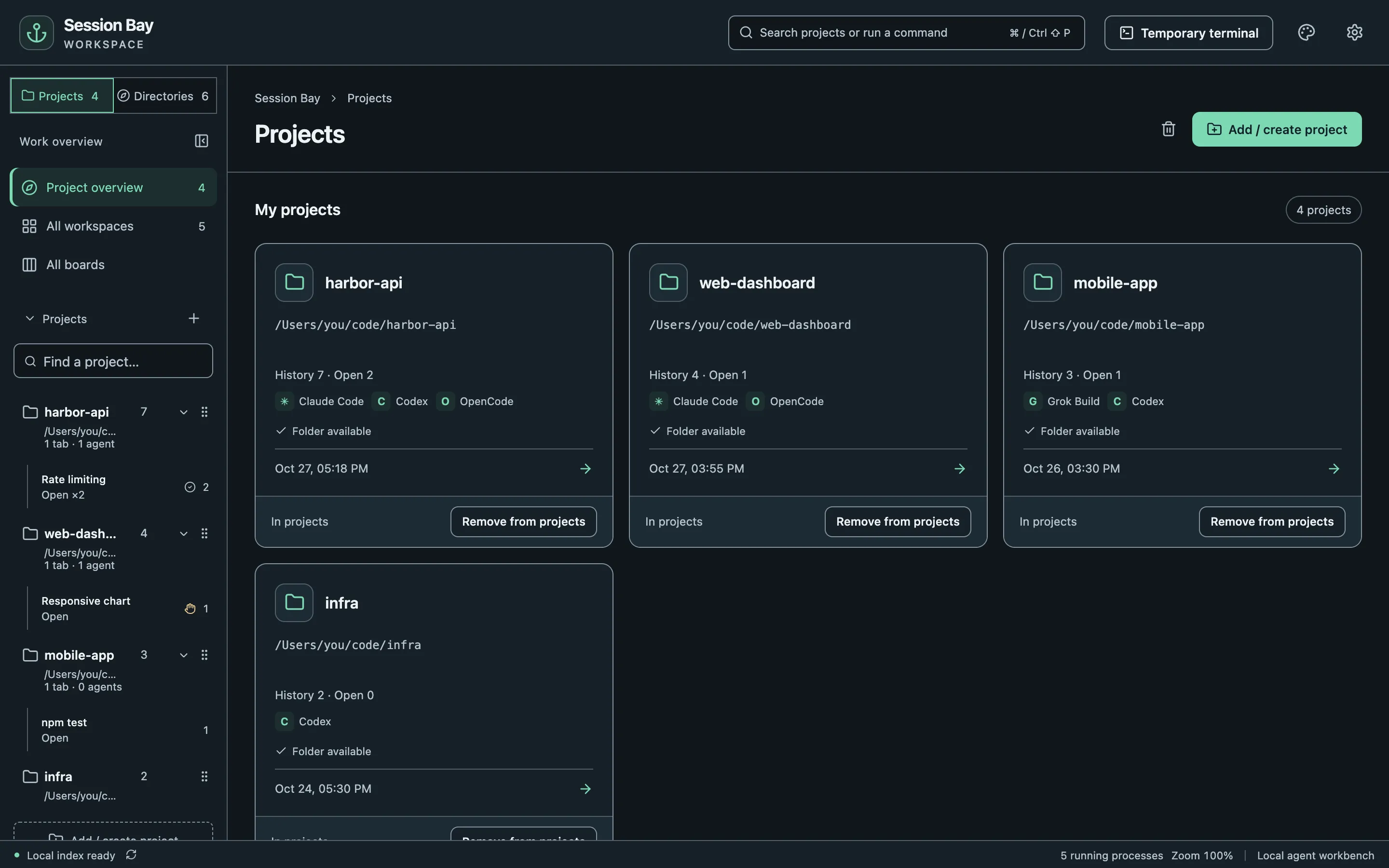
- Open All directories to see every folder where you ran an agent, and add the ones you care about to Projects.
- Pick a project, choose Sessions in the right-hand tool bar, and click a conversation to preview it.
- Choose Resume work. The agent starts in the original folder with the same session.
To plan work, open a project, choose Focus in the right activity bar, then choose Enable board; Open board there opens the full board. Start agents from a task and its sessions stay attached; Focus in the right activity bar shows what needs you next, and All boards tracks every enabled board. See Kanban boards.
Words used in this guide
Section titled “Words used in this guide”| Term | Meaning |
|---|---|
| Project | A folder you added to your project list. Removing a project never deletes files or history. |
| Session | One conversation with an agent, read from that agent’s own history. |
| Workspace | The tabs and panes that are open for a project. |
| Pane | One terminal running a shell or an agent. A tab can split into several panes. |
| Task | A board card with a title, notes and zero or more agent sessions. |
Supported agents
Section titled “Supported agents”Claude Code, Codex CLI, OpenCode, Grok Build and Antigravity CLI. See Supported agents for versions and where history is read from.