
Git workbench
Open a project and choose Git in the tool bar on the right. Session Bay detects the enclosing repository and scans project subfolders, using your installed git for every action. The subfolder scan has depth and resource limits, so deeply nested repositories may not appear until you open a file from them.
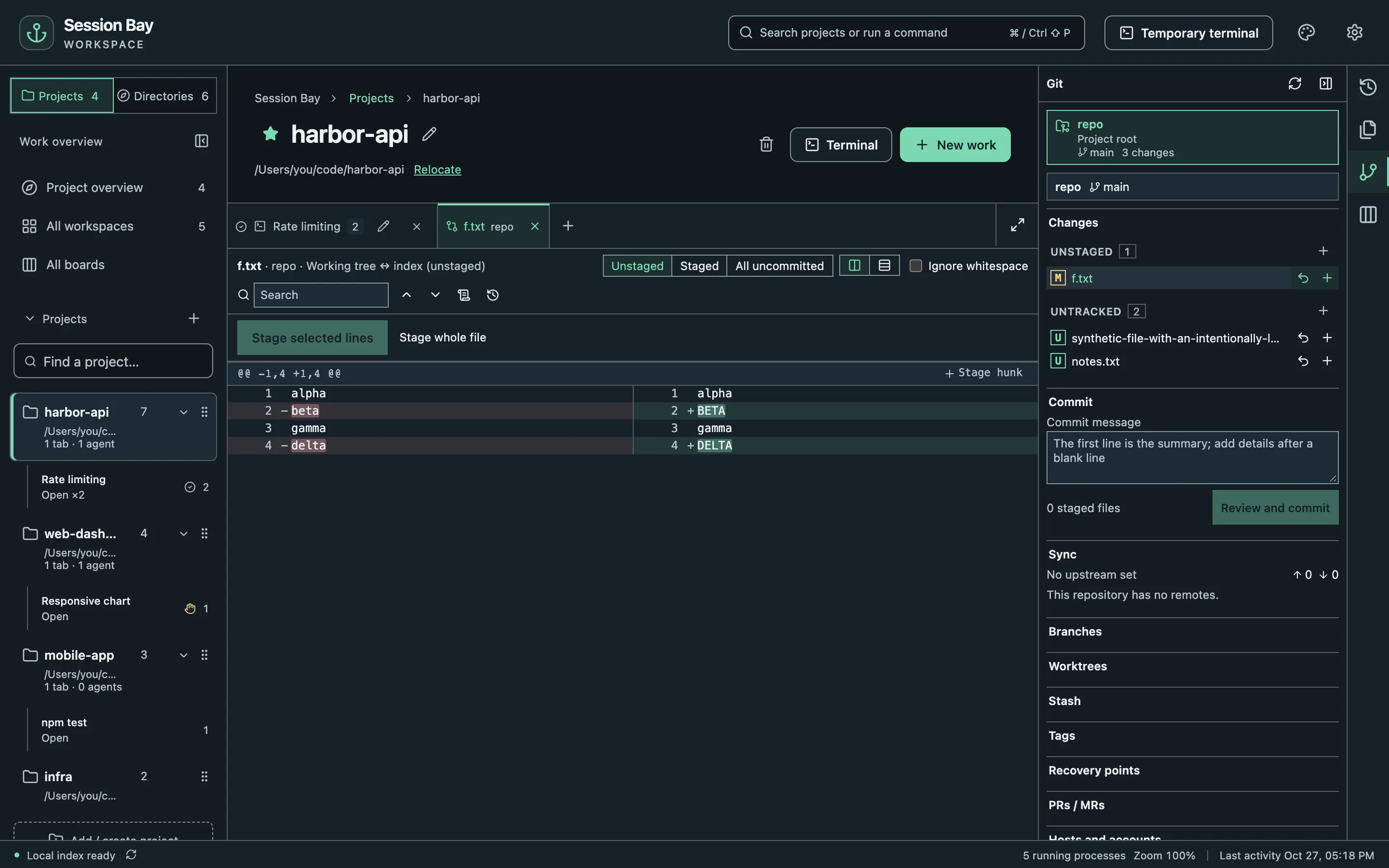
Changes and commits
Section titled “Changes and commits”- Click a changed file to see its diff side by side or inline.
- Select single lines or hunks and stage only those.
- Review and commit shows exactly what will be committed, which hooks will run and whether the commit is signed.
- Fetch, Pull and Push show the remote and branch before anything happens. Tags are only pushed when you push them explicitly.
History, branches and more
Section titled “History, branches and more”- History opens a commit graph with search and filters; Blame shows who changed each line.
- Create, switch, merge and delete branches; manage stashes, tags and worktrees.
- Reset and Revert explain their effect before they run.
Safe by default
Section titled “Safe by default”Destructive local operations such as reset, discard and branch deletion create a recovery point first. Restore it from Recovery points if something went wrong.
Force push uses force-with-lease, checking the remote commit you reviewed before moving the remote branch. It does not create a local recovery point for remote commits.
Conflicts
Section titled “Conflicts”When a merge, rebase or cherry-pick stops on conflicts, open the file to see base, ours and theirs, pick a side per block or edit the result, then Mark as resolved and Continue.
Pull requests
Section titled “Pull requests”Add a GitHub or self-hosted GitLab account under Hosts and accounts. Tokens are stored in your system credential store, never in Session Bay’s settings. Then you can list, create, review, approve and merge pull requests. Reviews and merges are tied to the exact commit you looked at.