
Settings
Open Settings with the gear icon in the top bar.
Sources and tools
Section titled “Sources and tools”Each agent has its own card:
- Enable the agents you use. Disabled agents keep their indexed history but are not scanned or launched.
- Executable path: Session Bay checks
PATHand common install locations, including nvm, fnm, volta, mise, asdf and bun on macOS. Choose Detect again after installing a CLI, or set an absolute path if it is still not found. - Arguments and permissions: extra launch arguments as a JSON array, for example
["--model", "your-model"]. High-risk modes that skip permission prompts are off by default and must be enabled per agent. - History sources: the folders history is read from. Detect history sources checks the official locations.
Shell profiles
Section titled “Shell profiles”Choose which shell and arguments new terminals use, and add environment variables.
Appearance and defaults
Section titled “Appearance and defaults”- Language: English, 繁體中文, or follow the system language. Changing it reloads the window; terminals reconnect.
- Interface and terminal themes, palettes, fonts and workbench zoom (⌘+ / ⌘- / ⌘0).
- The default agent and shell profile for New work, and system notifications.
- Updates: check GitHub Releases for new versions at startup and once a day. Updates are never installed automatically.
Attention notifications and sounds
Section titled “Attention notifications and sounds”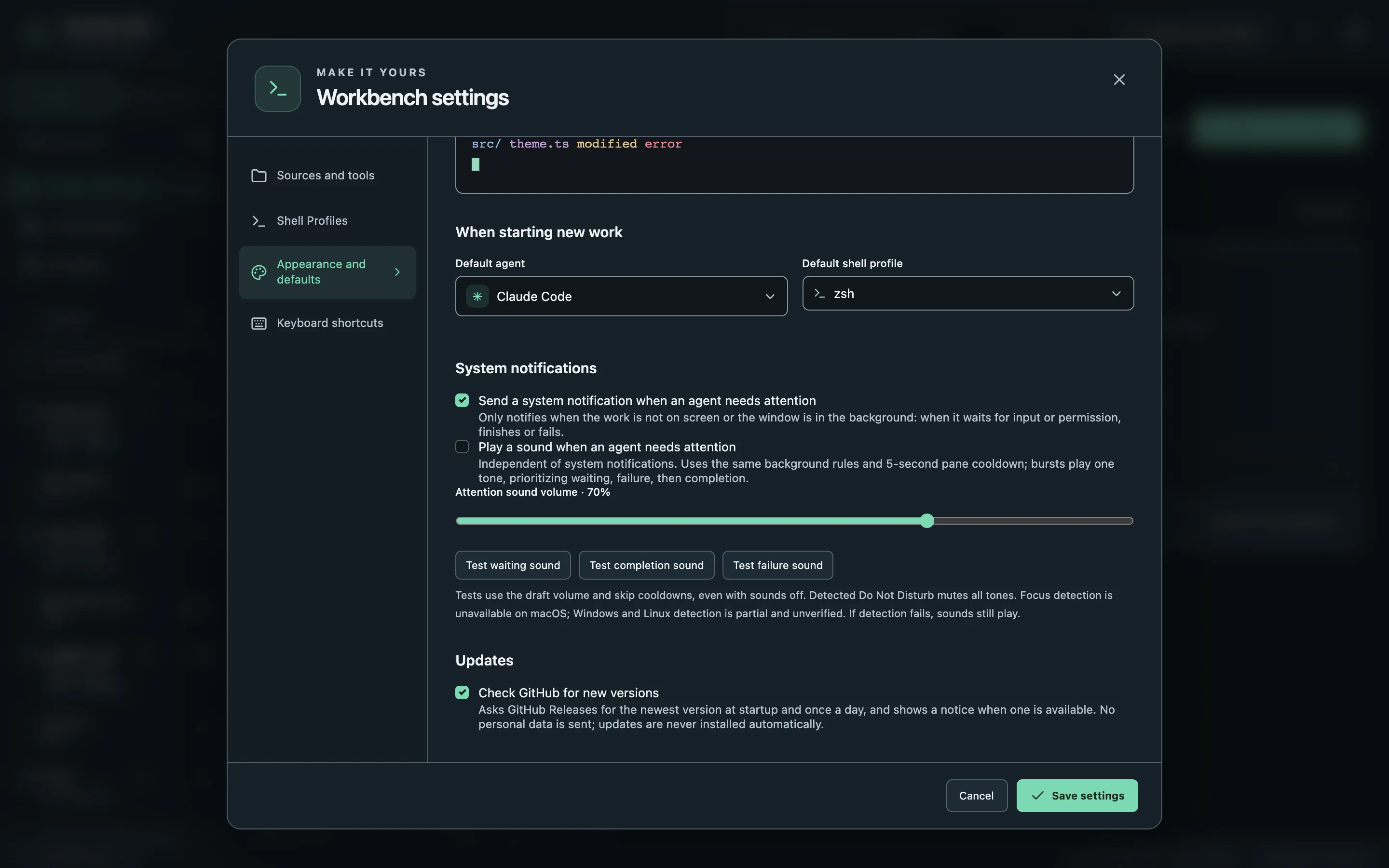
Under Appearance and defaults → System notifications, you can enable system notifications and Play a sound when an agent needs attention separately. Sounds are off by default. Attention sound volume ranges from 0 to 100% (default 70%); 0 is silent.
Waiting, completion and failure each have a different tone. Alerts only trigger when the pane is off screen or the window is in the background. Each pane has a shared 5-second cooldown. Sounds arriving within 1.5 seconds play as one tone, with priority waiting > failure > completion; eligible system notifications still arrive separately.
Use Test waiting sound, Test completion sound and Test failure sound to preview them. Tests use the unsaved volume, work with sounds off, and skip visibility rules and cooldowns. They still respect detected Do Not Disturb. Choose Save settings to apply the sound switch and volume to agent events. If sounds do not play, click or press a key in the app, or try a test button, to allow audio playback.
Do Not Disturb limitations
Section titled “Do Not Disturb limitations”- macOS: Focus detection is unavailable, so in-app sounds can play during Focus.
- Windows and Linux: detection is partial and unverified. Some Do Not Disturb modes may still allow sounds; Linux detection only covers GNOME and KDE signals.
- If detection is unavailable or fails, sounds play as usual. Detected Do Not Disturb mutes test sounds too. System notifications remain subject to the operating system’s notification settings.
Background and minimized sound playback has not been verified in the native WebViews on macOS, Windows or Linux. Turn the sound switch off when you need silence.
Keyboard shortcuts
Section titled “Keyboard shortcuts”Change the shortcuts for common commands. Mod means ⌘ on macOS.
Mod+Shift+K shows or hides the project Board activity panel. It appears in the command palette and can be rebound in this shortcut list.