
Kanban boards
Enable a project board
Section titled “Enable a project board”Open a project from Projects, select Board in the right activity bar, then choose Enable board. Only projects you have added to Projects can have a board; add a directory there first if it only appears in All directories.
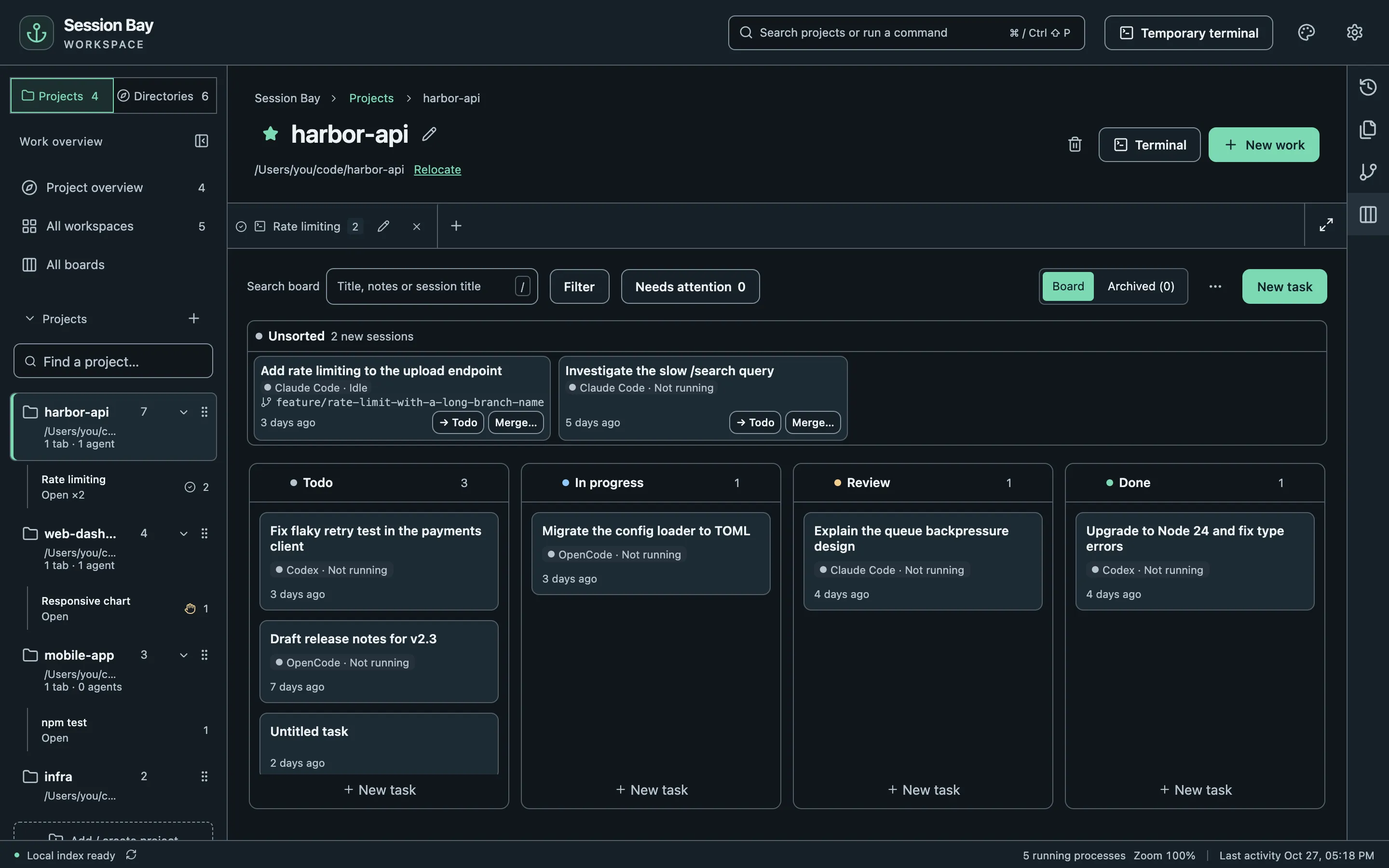
Each card represents a task and can hold zero or more agent sessions. Choose New task to plan work before starting an agent. New sessions enter Unsorted after you enable the board. Older history stays outside the board until you resume it or use Attach from history in a task’s details. Child sessions follow their parent task.
Board data stays in Session Bay’s local catalog, survives index rebuilds and is never written into the project folder or agent history.
Columns, stages and movement
Section titled “Columns, stages and movement”The default columns are Unsorted, Todo, In progress, Review and Done. Use ⋯ → Add column… or a column’s ⋯ menu to rename, reorder or add columns and choose their stage. Unsorted and Done are system columns: you can rename and reorder them, but their stage is fixed and they cannot be deleted. Deleting another column requires choosing a destination for all its tasks, including archived ones.
Drag anywhere on a card to reorder it or move it to another column; a click opens its details. With a card focused, Alt+Up/Down changes order and Alt+Left/Right changes column. The details drawer’s Stage selector moves a task without dragging; ⋯ → Position changes its order. Drag near the board or list edges to scroll toward off-screen tasks and columns. Each column scrolls within the available window height. Press Escape to cancel a drag. Moves offer Undo for about six seconds.
Movement is manual. An agent finishing a turn does not move its task to Done.
The Unsorted inbox sits above the columns. Each inbox card offers → Todo and Merge…; drag cards into or out of it. An empty inbox becomes a single “Inbox is clear” line. Use New task at the bottom of a column for quick entry: Enter creates and Escape cancels. Done columns initially show five tasks; expand Show n more for the rest. When auto-archive is enabled, its delay appears beneath Done columns.
With focus inside the board, N opens New task and / focuses search. These keys do not intercept typing or IME composition.
Board activity panel
Section titled “Board activity panel”Choose Board in the right activity bar, or press Mod+Shift+K (⌘ on macOS, Ctrl elsewhere). It is available for curated projects and follows the current project. The activity icon shows the number of active tasks whose sessions need input or report an error; archived tasks are excluded.
The compact panel shows project columns in order, with Done groups initially collapsed. Drag cards between groups, including onto a collapsed header, or use the same Alt+arrow shortcuts as the full board. Todo groups support inline New task. Select a card to open its details drawer, or choose Open full board for the main board. If the board is disabled, the panel offers Enable board.
The full board has no entry in the workspace tab bar. Open it from the panel, or press Mod+Shift+P, search for Open full board and press Enter. You can assign this command a shortcut in Settings. Select a workspace tab to return to its terminals.
Task details and sessions
Section titled “Task details and sessions”Select a card to open its right-side details drawer while keeping the board visible. The title receives focus on open. Edit the title and notes, then choose the single Save button below Notes; attached sessions follow below. Save and start saves pending changes before opening the launcher; if saving fails, the draft stays open. The drawer also offers Resume latest session, individual session Resume/Split actions and Attach from history. Worktree, merge and cleanup actions live in ⋯. Closing an unsaved draft still asks before discarding it.
Start work opens the existing agent or shell launcher in the project’s folder, or in the task’s linked worktree. The task title and notes are inserted into the terminal input without being sent, once safe paste mode is available. Review them before pressing Enter. If safe paste mode is unavailable, use Copy task text instead. Plain shells do not create an indexed agent session.
Automatic attachment from a new launch needs a trusted session ID from the agent and one enabled history source for that agent. Some status integrations, hooks-disabled launches and older brokers do not supply that ID. If the session does not attach automatically, use Attach from history. Sessions in a task’s bound worktree can also attach by their working directory.
You can merge tasks by dropping one on the center of another in a project board, or choosing a target in task details. Review the confirmation: sessions and notes move to the target and the source task is deleted. Use Split into new task on an attached session to separate it again. Merging never crosses projects.
Linked worktree sessions belong to the main project’s board and show their branch. Create worktree in task details binds the new checkout to that task so sessions started there attach automatically.
All boards
Section titled “All boards”Choose All boards below All workspaces in the sidebar to see tasks from every enabled project board in five fixed stage columns. Custom and renamed project columns are grouped by their stage. In Group by: None, each card shows its project’s color, initials and name. Choose Group by: Project for one swimlane per project, with its name shown once above the five stage columns.
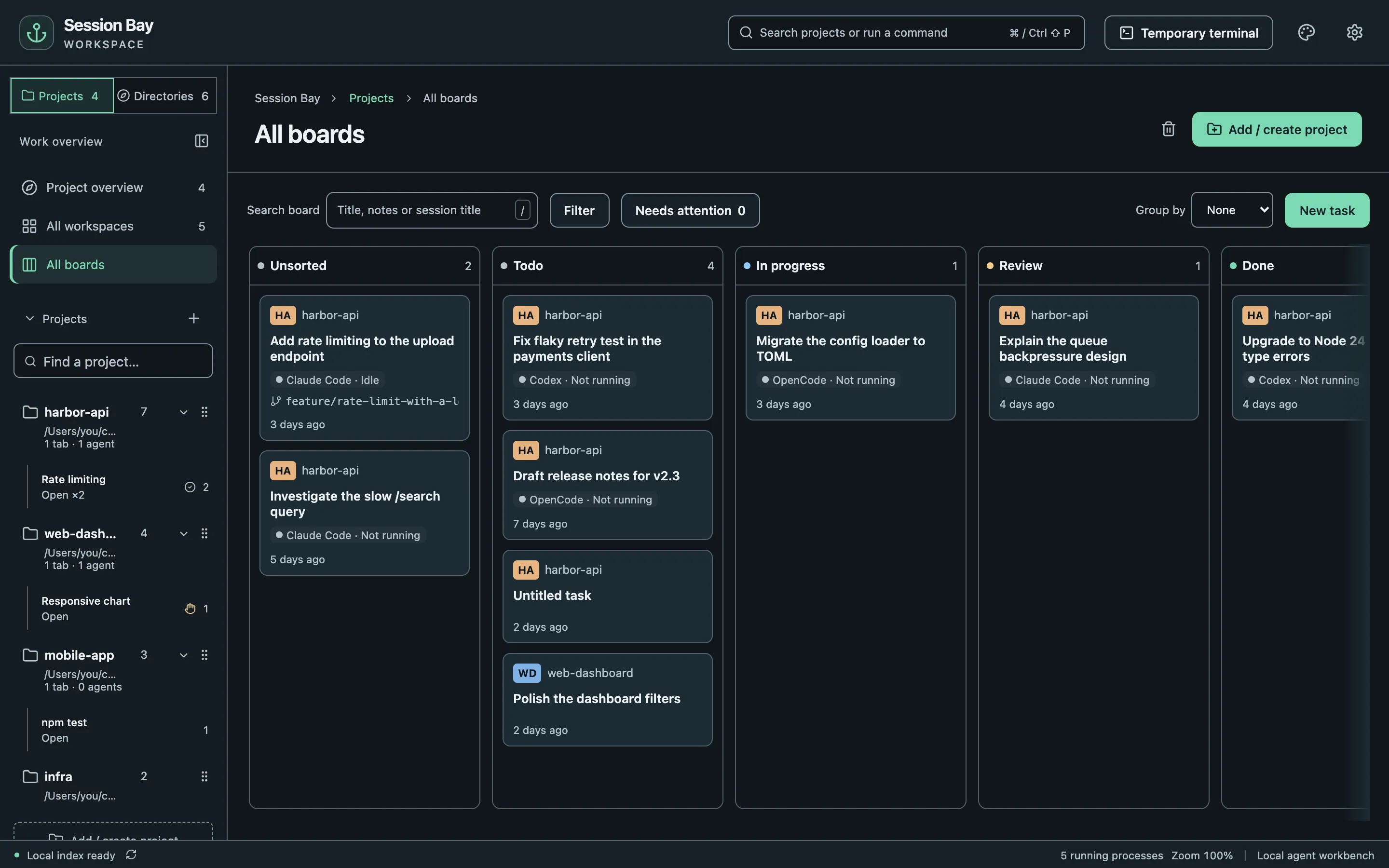
Search directly, open Filter for Project and Agent, and toggle Needs attention with its live count. Active project/agent filters appear as removable chips. Text matches task titles, notes and attached session titles. Needs attention uses the attached sessions’ live input/permission or error status. You can combine all four filters.
Drag a card to another stage or press Alt+Left/Right while it is focused. The card goes to the first column for that stage in its own project’s column order, after that column’s existing tasks. A destination is unavailable when that project has no column for the stage. The details drawer lists the owning project’s actual columns for pointer moves. Dropping over a different project’s card still changes only the stage; it does not merge the cards or change the task’s project.
Task details, start and resume also work from this overview. Use the project board to change columns or reorder cards within a column.
Use New task (or N with board focus) to create a task from the overview. Column choices include the project name so the destination is explicit.
Done, archive and cleanup
Section titled “Done, archive and cleanup”A Done task offers three separate actions:
- Archive task hides it while keeping its sessions. Select Archived (n) on the project board to restore it. Manual archives also offer a six-second Undo.
- Delete task removes the card and lets you return its sessions to Unsorted or leave them off the board. History is untouched.
- Recycle attached sessions… uses the existing per-session confirmation flow. Recycled sessions are hidden from the task and return if restored.
⋯ → Auto-archive… on the project board can archive Done tasks after a chosen number of days without task changes. It is off by default. Archived tasks are hidden from All boards.
If a session’s source is confirmed missing or the session is moved to the system trash, its link is removed; the task remains, even if it becomes empty. None of these board operations rewrites agent history.